Permissions & access
User management, the per-company permission matrix, and how access levels gate every action across the platform.
User Management
CloudWady provides comprehensive user management for both platform-wide and project-level access control.
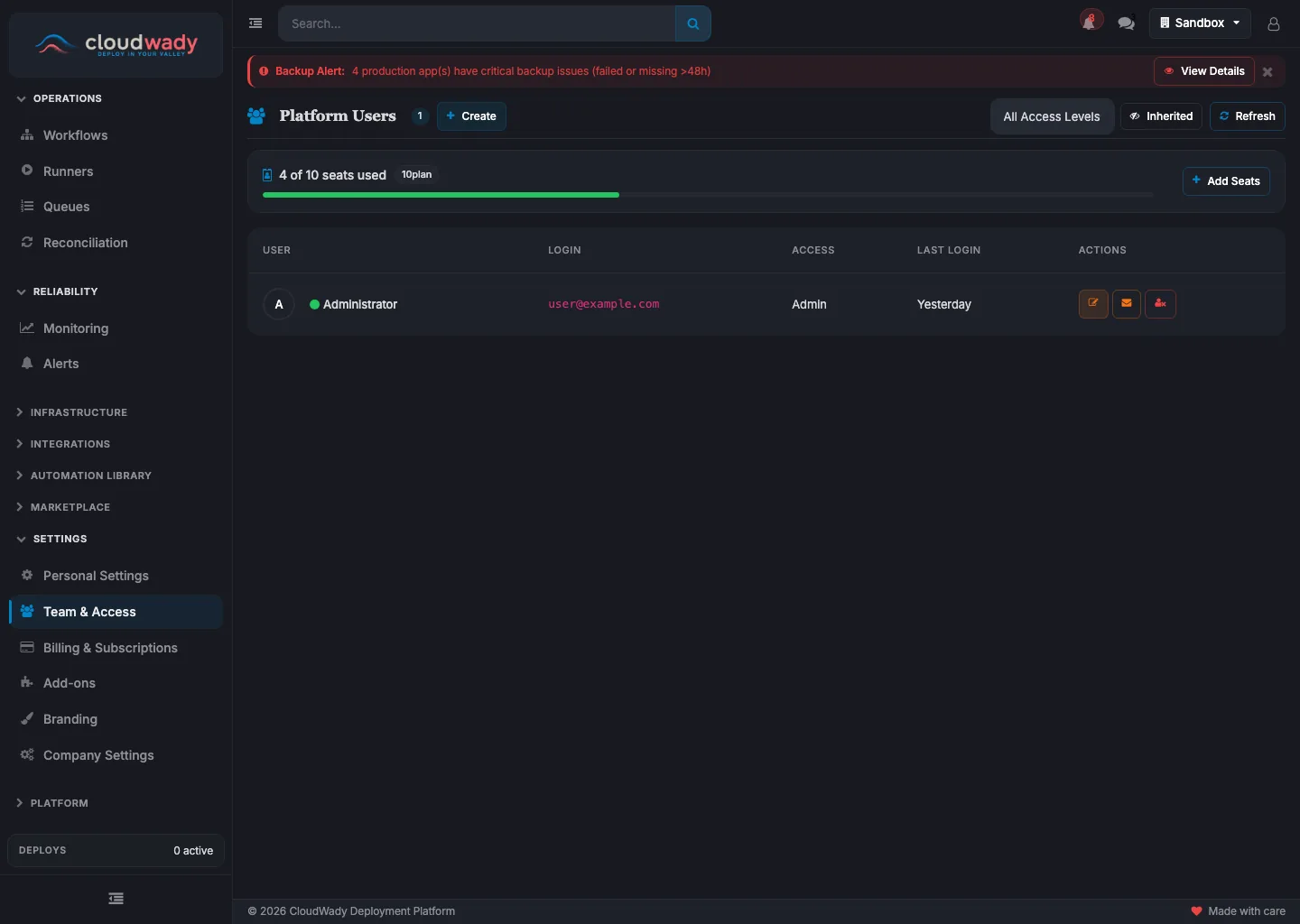
- Sidebar navigation - access user management from Settings
- Stats cards - total users, project access, dashboard-only, and admin counts
- User table - view and manage user access levels
User Overview
The Users screen shows statistics cards for: Total Users, Users with Project Access, Dashboard Only users, and Platform Admins. The user table displays login, access level, active status indicator, last login time, and inherited access info for each user.
Editing User Roles
Click the edit action on any user to open the role dialog, then pick an access level: Viewer, Developer, Developer Plus, Maintainer, or Admin. Each level lists what it grants. Permissions are per-company, so the same person can hold different roles in different companies.
Available Actions
| Action | Description | Access Level |
|---|---|---|
| Refresh Users | Reload the user list | All |
| Add User / Create | Add a new user ("Add User" in project mode, "Create" in platform mode) | Admin |
| Search | Filter users by name or login | All |
| Access Level filter | Filter by role (All, Viewer, Developer, Developer+, Maintainer, Admin) | All |
| Edit | Open user dialog to change access level | Admin |
| Send Reset Password Email | Send a password reset email to the user | Admin |
| Remove from Project | Remove user's project access (project mode only) | Admin |
| Deactivate User | Deactivate user and remove SSH keys from all servers (platform mode only) | Admin |
Was this page helpful?
Your answer helps us prioritize documentation improvements.
Thanks — your feedback helps us improve.