Projects & environments
Create projects, manage dev / staging / prod environments, and tour the project dashboard.
Creating a Project
Projects are the primary organizational unit. Creating one is a short, guided flow: pick a plan, then fill in the project's details and its first environment.
Step 1 — Choose a plan
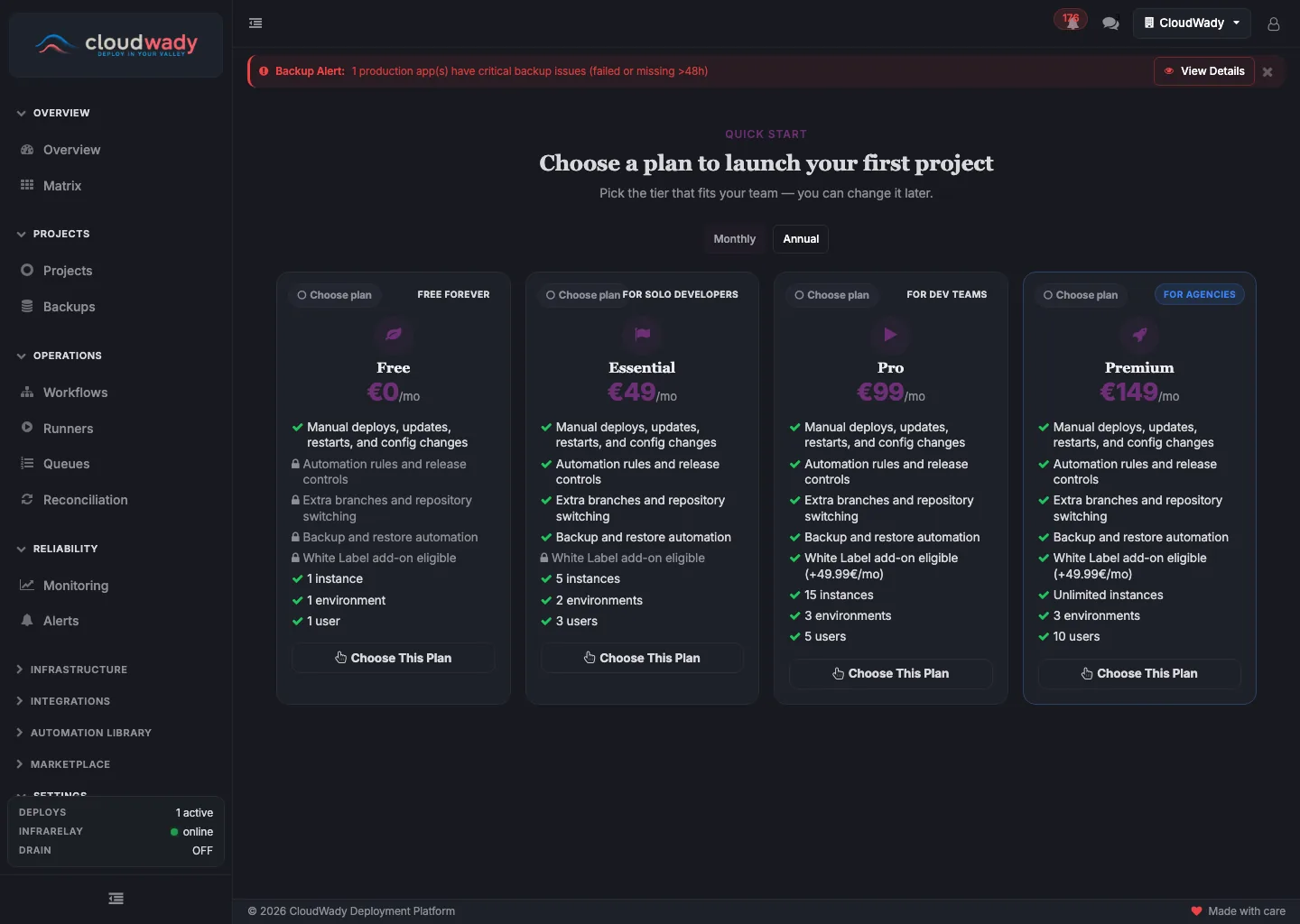
Each tier (Free, Essential, Pro, Premium) sets what the project can do — instances and environments, included seats, automated builds, backup retention, and white-label availability. Switch between Monthly and Annual at the top; annual plans bill ten months for twelve.
Step 2 — Project details & first environment
After choosing a plan, the project creator opens. Fill in:
- Project Name: used as the prefix for resource naming.
- Deployment Type: the kind of deployment (e.g. Odoo).
- Project Registry: the Git repository to connect (refresh to re-sync registry data).
- Domain Provider: the DNS provider for this project's URLs (e.g. Cloudflare).
- Environment Type: the first environment to create — Development, Staging, or Production.
- Environment & build configuration: the embedded environment creator sets the Odoo version and edition, base image, Git branch, and automation options (auto-install, OCA queue, coverage, excluded addons).
Project Dashboard
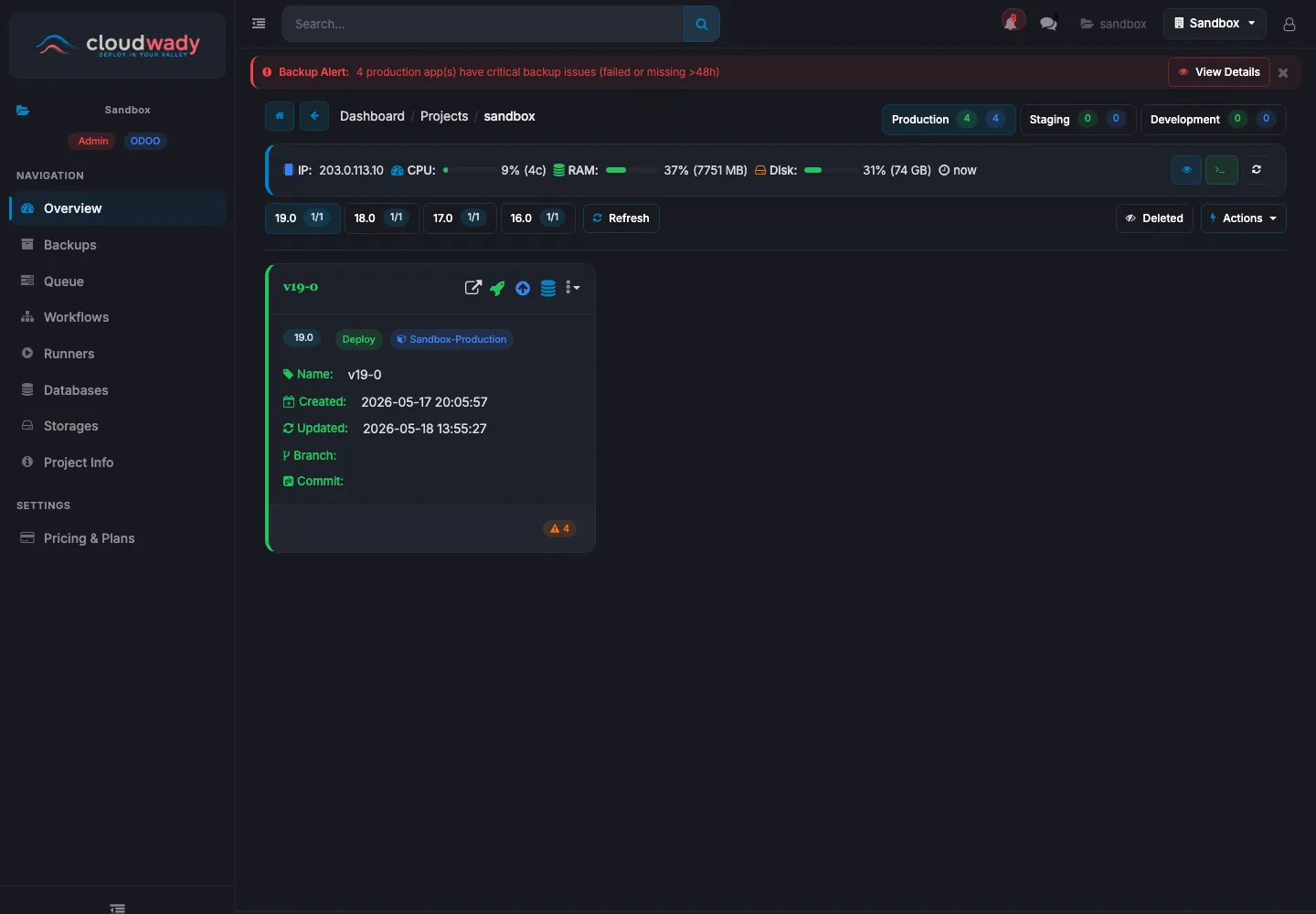
The project dashboard provides a comprehensive view of your environments, servers, and applications within a project.
Project Sidebar
Inside a project, the sidebar provides navigation to all project sub-screens:
| Menu item | What it does |
|---|---|
| Overview | Environment overview with app cards; environment tabs (Production / Staging / Development) and per-version filters. |
| Backups | Backup catalog for this project's apps. |
| Queue | Background job processing for this project. |
| Workflows | Workflow execution history for the project. |
| Runners | Ansible runner executions tied to the project. |
| Databases | PostgreSQL database server management. |
| Storages | Storage-box assignments used for backups. |
| Project Info | Name, code, type, registry, and domain provider (General Info / Configuration tabs). |
| Pricing & Plans | Project billing and plan management. |
Project Overview Tabs
The Project Info screen contains two overview tabs:
| Tab | Badge | Description |
|---|---|---|
| General Info | Core | Project name, code, type, registry, domain provider |
| Configuration | Advanced | Project-level build and deployment configuration |
Environment Tabs
Colored tabs at the top show your environments with app counts:
- Production ( red) - Live applications serving end users.
- Staging ( yellow) - Pre-production testing environment.
- Development ( green) - Active development and feature testing.
Each tab shows two badge numbers: deployed apps and total apps in that environment.
Server Metrics
The server card displays real-time resource usage: IP address, CPU percentage and core count, RAM usage with progress bar, disk usage with total capacity, and last metrics collection time.
Version Tabs & App Cards
Version tabs (19.0, 18.0, 17.0, etc.) filter applications by Odoo version, showing active/archived counts per version. Each app card shows the name, ID, commit SHA, version badge, environment tags, timestamps, branch info, and status indicators (green check for healthy, warning triangles for issues).
Environment Toolbar Actions
| Action | Description | Access Level |
|---|---|---|
| New Deployment App | Create a new application in this environment | Developer+ (env-type specific) |
| Automate Environment | Auto-configure environment automation settings | Developer+ (env-type specific) |
| Destroy | Destroy selected applications (danger zone) | Admin |
| Refresh | Reload environment data | All |
| Show Disabled Apps | Toggle visibility of disabled/archived apps | All |
App Card Actions
Each app card provides quick action buttons and a dropdown menu:
| Action | Description | Access Level |
|---|---|---|
| Open | Launch app URL in new browser tab | All |
| Deploy | Full deployment: build, configure, start | Developer+ (env-type specific) |
| Update | Pull latest code and restart | Developer+ (env-type specific) |
| Backup | Create database + filestore backup | Developer+ (env-type specific) |
| Retry | Retry failed deployment (only when state is error/canceled) | Developer+ (env-type specific) |
| More (⋮) | Dropdown with all additional actions and settings | Varies |
| Log Stats badges | Click warning/error count badges to navigate to logs | Viewer+ |
Environments
Environments provide logical separation for different stages of your deployment lifecycle.
| Environment | Purpose | Min. Access to Deploy |
|---|---|---|
| Production | Live applications serving end users | Developer Plus |
| Staging | Pre-production testing and validation | Developer |
| Development | Active development and feature testing | Developer |
Environment Features
- Each environment is assigned to a specific server with visible resource metrics.
- Applications are grouped by Odoo version (e.g., 19.0, 18.0, 17.0).
- Environment-level addons management for shared addons across all apps.
- Cross-server restoration support for migrating apps between environments.
- Per-environment automation settings for bulk configuration.
Available Actions
| Action | Description | Access Level |
|---|---|---|
| New Deployment App | Open the app creation dialog for this environment | Developer+ (env-type specific) |
| Automate Environment | Configure automation settings (auto-install, coverage, clean DB) | Developer+ (env-type specific) |
| Destroy | Destroy environment resources (danger zone) | Admin |
| Refresh | Reload environment data | All |
| Show Disabled Apps | Toggle visibility of disabled apps | All |
| Addons (settings view) | Manage shared addons across all apps in this environment | Developer+ |
| Save / Reset | Save or discard changes to environment automation settings | Developer+ |
Environment Automation Fields
When editing automation settings, the following fields are available: update type, automatic installation toggle, coverage analysis toggle, clean database toggle, and acceptable coverage threshold.
Was this page helpful?
Your answer helps us prioritize documentation improvements.
Thanks — your feedback helps us improve.