Documentation Deploy & operate
Alerts & notifications
What the platform warns you about, who on your team receives each alert, and how to pause alerts, change where they go and choose what reaches you.
How alerts reach you
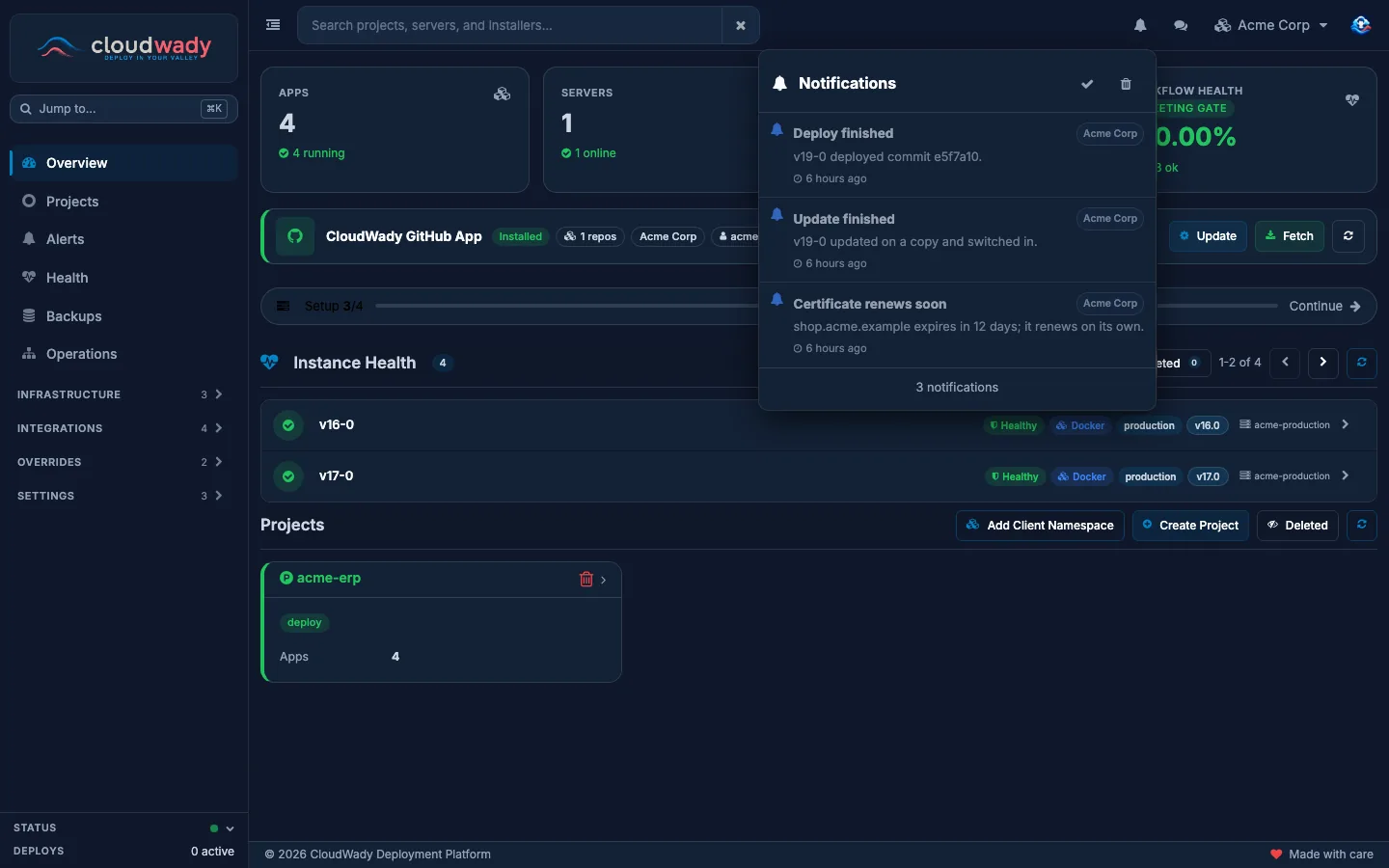
The platform watches your apps, backups, certificates and servers, and tells you when something needs attention. An alert arrives in two places: the bell in the top bar and an email. Each alert has a severity: Info, Warning or Critical.
The Alerts menu in the sidebar is where you see them and set them up for your team. It is part of the paid plans; on the Free plan the menu shows a lock.
The Alerts menu
The Alerts screen has five tabs:
| Tab | What it does |
|---|---|
| Alerts | Every alert in your workspace, with its status (Firing or Resolved), severity and time. Filter by status or severity, and by workspace when you belong to several; open an alert to see its details. A Maintainer or Admin can Acknowledge a firing alert, which stops it from being sent again until it resolves. |
| Configs | The alerts that can notify your team, grouped by category. A Maintainer or Admin can switch an alert off for the whole team; everyone else sees whether it is on. |
| Maintenance | Maintenance windows: periods when your workspace's alerts are paused, for planned work. |
| Delivery | Where alert emails come from and where they go. |
| How to? | A short explanation of how alerts and delivery fit together. |
What the platform alerts you about
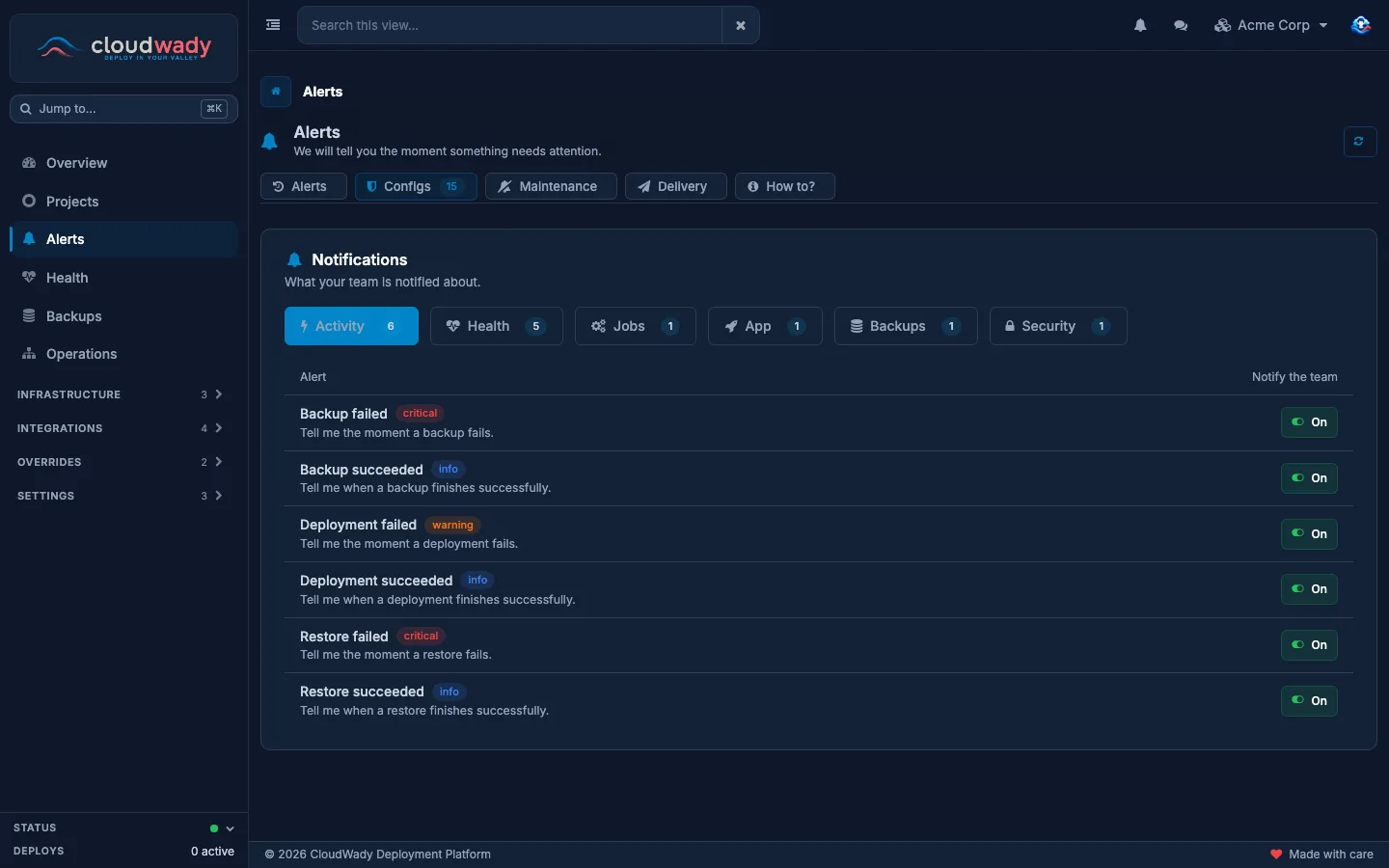
The Configs tab lists the alerts that can reach your workspace, in plain words. The platform decides which checks run and their thresholds; you decide whether your team hears about them.
| Category | Alerts |
|---|---|
| Activity | A deployment, a backup or a restore failed, or finished successfully. |
| Backups | Backup didn't run: a backup is overdue. Backups not copied off-site: a backup hasn't reached your external storage. Backups too big for the server: an app's backups take too much of its server's disk and it has no external storage. |
| Security | Certificate expiring: an HTTPS certificate is about to lapse. |
| App | Website not answering: an app's public address stops answering as the app. App run failing: a run on an app failed while its retries are still running. App went down: an app is left in an error state after its last retry. |
| Jobs | Background jobs stuck: automation jobs are piling up unprocessed. |
| Health | Server unreachable, Server stopped sending logs, High CPU, High memory and Low disk space. |
If the tab says No alerts set up yet, monitoring for your workspace hasn't started: the platform adds it as your projects go live.
Who receives an alert
An alert doesn't go to everyone. It goes to the people it is about:
- An alert about an app, its backups, restores or addresses, reaches the people whose notification scope covers that app (see your notification settings below), and whoever started the run.
- An alert about a server, a service installed on it, or stuck background jobs reaches the workspace's Admins and Maintainers.
- Nothing is lost. If a warning or critical about an app would reach nobody, because nobody's scope covers that app, it goes to the workspace's Admins and Maintainers instead.
Then each person's own settings decide: an alert below their minimum severity is skipped (a critical always comes through), and an alert switched off, by them or for the whole team, doesn't reach them.
Pausing alerts during planned work
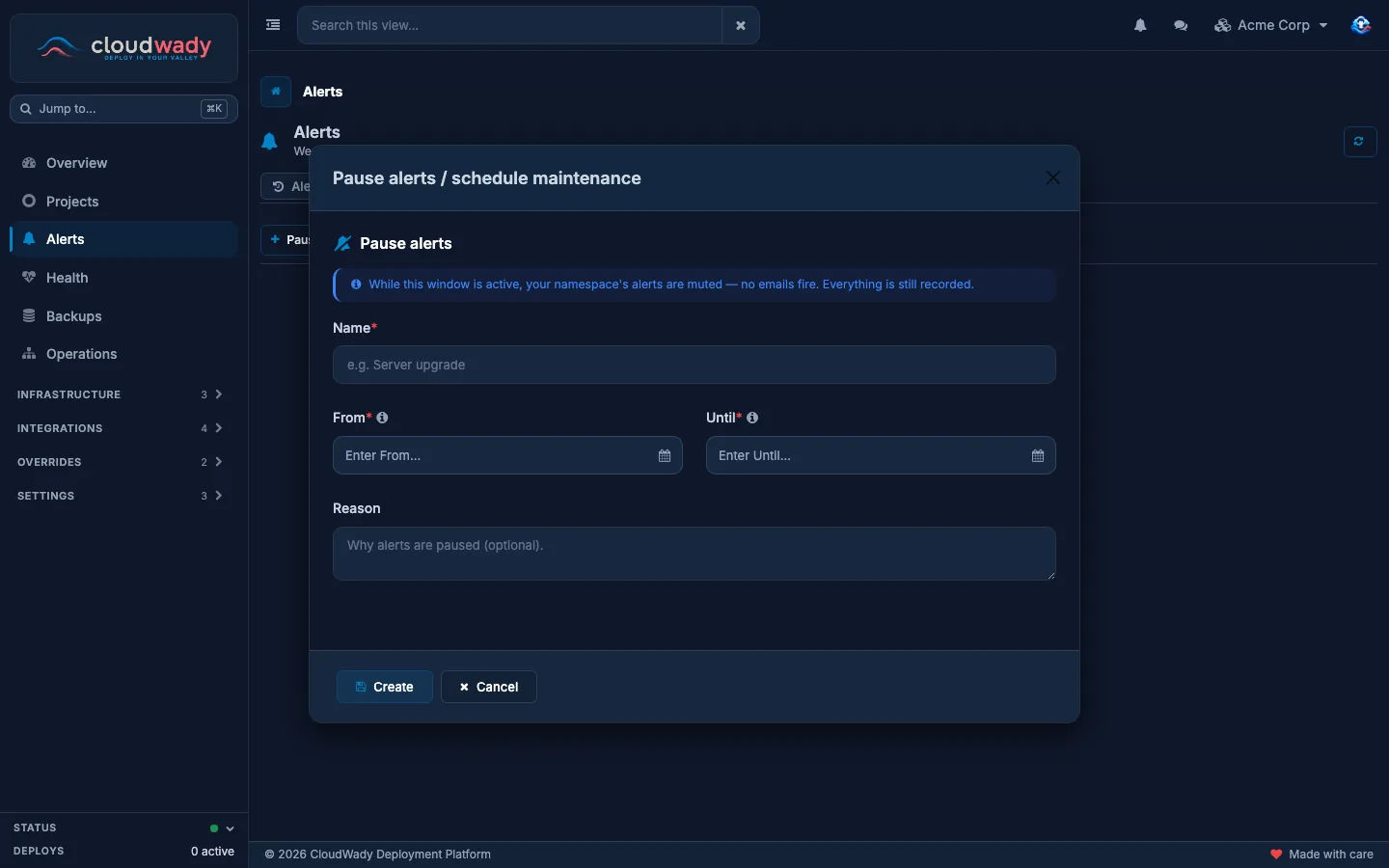
Before work that would set alerts off, such as a server upgrade or a planned migration, open the Maintenance tab and press Pause alerts. Give the window a Name, a start (From), an end (Until) and, if you like, a Reason. A start in the future schedules the window ahead of time; alerts resume when it ends. While the window is active, all of your workspace's alerts are muted and no alert emails are sent, but everything is still recorded.
The list shows each window as scheduled, active or expired. Cancel window ends one early. Creating and cancelling windows needs the Maintainer or Admin level.
Where alert emails come from
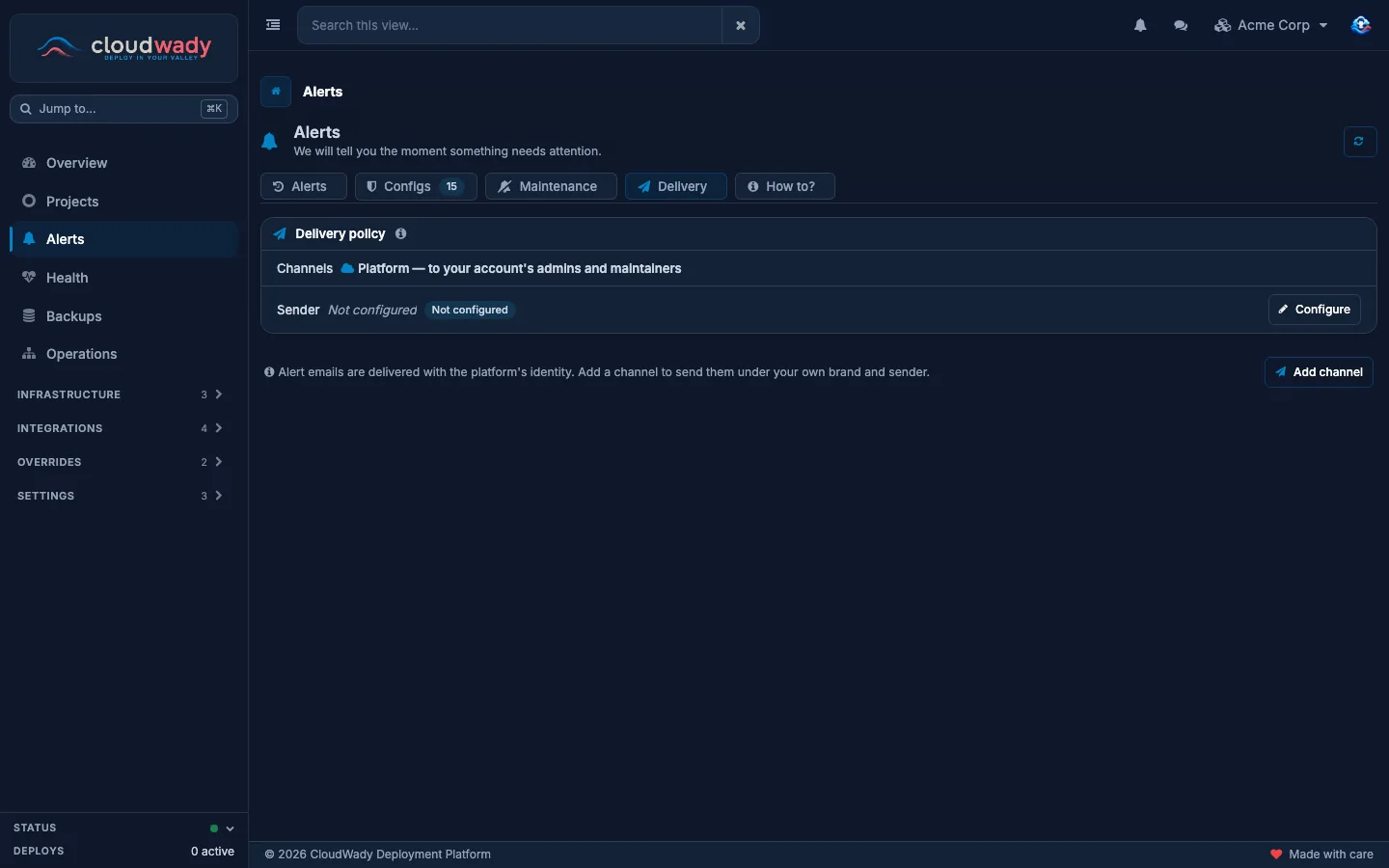
By default the platform sends your workspace's alert emails itself. The Delivery tab then shows Platform — to your account's admins and maintainers, and there is nothing to set up.
With the White Label add-on, alerts can go out under your own brand:
- Sender. A workspace Admin configures the SMTP server your alert emails are sent through, tests it, then activates it.
- Channels. A Maintainer or Admin can add channels with Add channel. A channel has a name, a Severity Filter (all severities, critical only, warning and above, and so on), a choice of Resolved Notifications, and the sender and reply-to addresses its emails carry. Send test alert checks a channel end to end.
Channels decide how alerts are sent, not who receives them: recipients are always the people described in Who receives an alert.
Your own notification settings
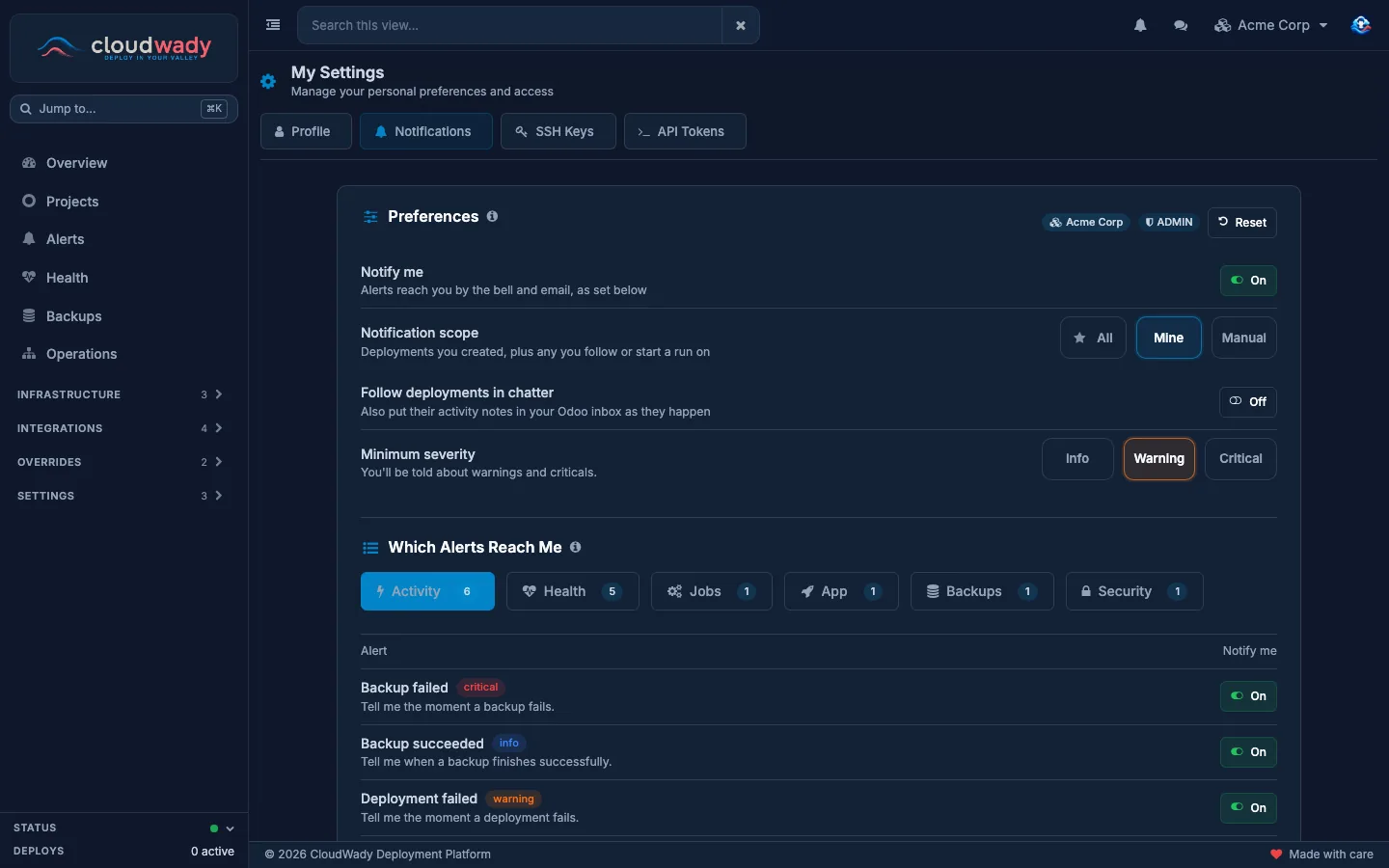
What reaches you personally is set in My Settings → Notifications, from the menu under your avatar. The settings are kept per workspace, and changes are saved as you make them.
| Setting | What it does |
|---|---|
| Notify me | Off, nothing reaches you in this workspace: no alerts, no bell, no email, not even for runs you start. If you turn it off while no other Admin or Maintainer of the workspace receives alerts, the screen warns that its warnings and criticals now reach nobody. |
| Notification scope | Which deployments you hear about. All: every deployment in the workspace. Mine: deployments you created, plus any you follow or start a run on. Manual: only what you follow yourself or start a run on. The star marks the scope recommended for your access level. |
| Follow deployments in chatter | Also puts the activity notes of the deployments in your scope in your Odoo inbox as they happen. |
| Minimum severity | Info: everything. Warning: warnings and criticals. Critical: criticals only. Critical alerts always reach you whatever you choose here; to stop one, switch that alert off below. |
| Which Alerts Reach Me | The same alerts as the Configs tab, each with your own switch. Turning one off changes only what you receive. An alert marked Turned off for the whole team by an admin stays off until the team switch is on again. |
Reset puts back the settings recommended for your access level. Alerts that aren't about a deployment, such as server capacity or stuck jobs, go to Admins and Maintainers whatever their scope.
The bell
The bell in the top bar collects your notifications in the workspace: runs that failed, were canceled or timed out, workflows and queues that finished or failed, monitoring alerts, and billing notices. A number on the bell counts the unread ones. Open an entry to go to what it is about, or mark everything as read. Read notifications are removed after 30 days.
Was this page helpful?
Your answer helps us prioritize documentation improvements.
Thanks — your feedback helps us improve.
Type to search titles and text.
↑↓ to move ↵ to open Esc to close