Documentation Deploy & operate
Restore points & safe updates
Roll an app back by its code, its data or both, and update production on a copy of its database so a failed update changes nothing.
Restore points
Before every change to an app, the platform records a restore point: the app as it was just before. A point holds the commit each repository was on, the backup taken before the change (when one was), and what the change did: the commits it brought and the modules it migrated.
A point is recorded for Deploy, Update, Quick update and Update Modules, in every environment. A rollback is a change too, so it leaves a point of its own: you can always roll forward again. Points are kept for 90 days; their backups follow the backups' own rules.
Open the app and choose Restore points in its sidebar.
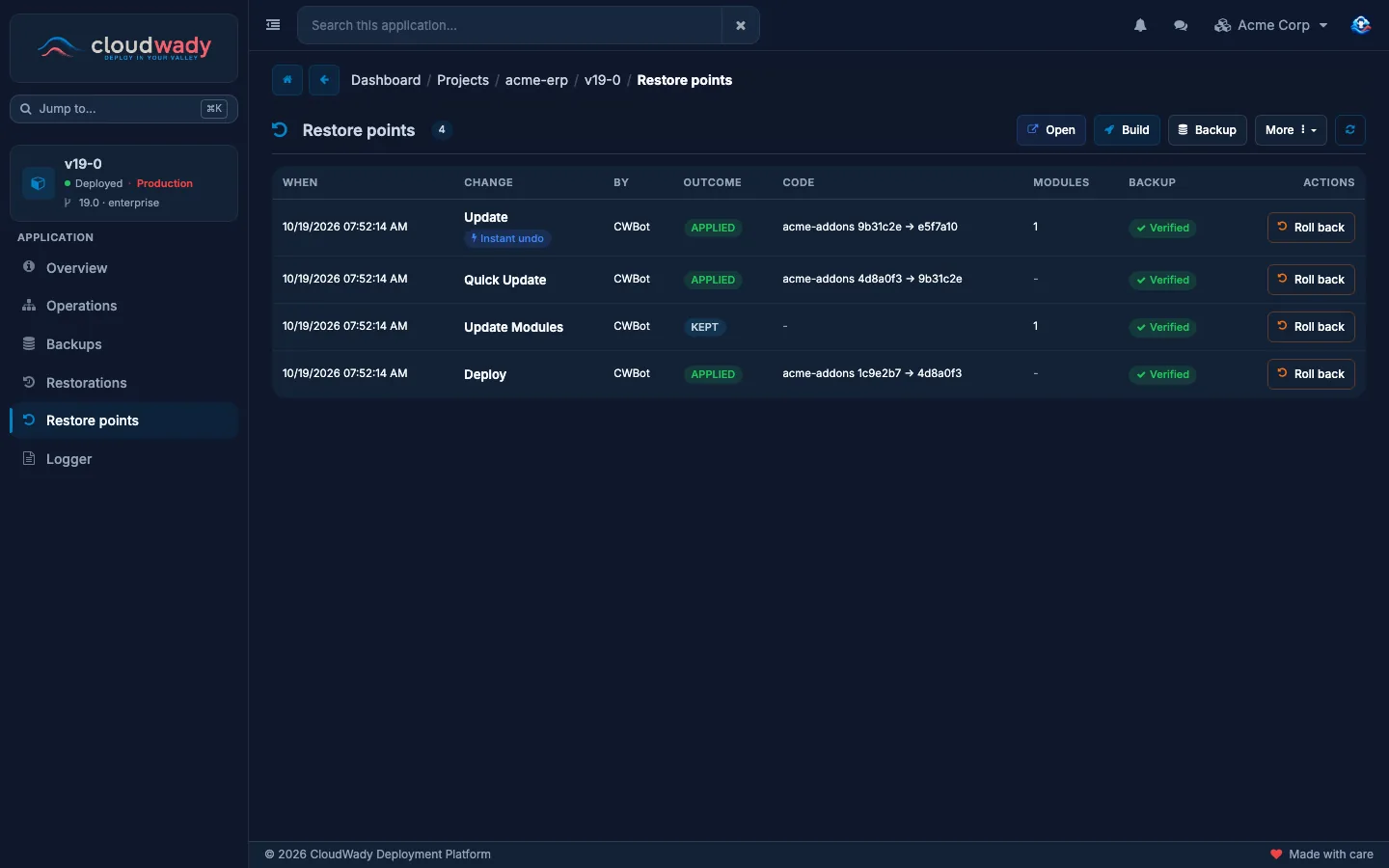
| Column | Meaning |
|---|---|
| When, Change | When the change ran, what it was, and who started it. |
| Outcome | Applied: the change went through. Failed: it did not. Failed, nothing changed: the update failed on a copy of the database, so the app kept its code and data. Running: not finished yet. |
| Code, Modules | The commits the change moved, and the modules it migrated. |
| Backup | The backup taken before the change: Verified, Unverified or None. Restoring data needs a verified one. |
Two badges can appear on a point. Instant undo: the database from before this change is still kept on the server, so undoing it takes seconds (see The kept copy). Held here: the app was rolled back to this point and is held there.
Rolling back
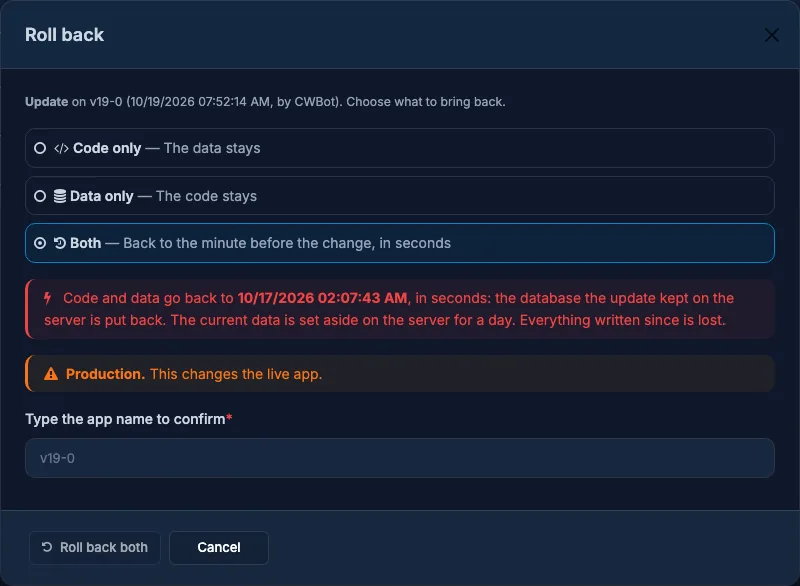
Pick the point from just before the change you want to undo, and press Roll back. The dialog says what the change was and asks what to bring back. Each choice says whether it can run from this point and what it keeps and loses; one that cannot run is greyed out.
| Choice | Use it when | Keeps | Loses |
|---|---|---|---|
| Code only | New code broke something, found days later. | Every record created since. | The code changes since the point. |
| Data only | Records were lost or damaged; the code is fine. | The current code. | Everything written since the backup, in the app you restore into. |
| Both | You want to undo a change right after it, before people rely on what it created. | Nothing after the change. | Code and data since the point. |
On production you type the app's name to confirm. When the rollback starts, follow it in the app's Operations. An app can only be rolled back while it is deployed and nothing else runs on it.
Code only
The repositories are checked out at the point's commits. The setup files are written again, and the image is rebuilt when the code's requirements changed. Modules are not downgraded and the data stays as it is.
- If modules were migrated since the point, the dialog lists them: the older code will then run on the newer database schema. That is usually fine for small changes; if it is not, use Both.
- The shared Odoo code that every app of the same version uses is never rolled back. If it moved since the point, the dialog says so.
- The app is held at the rolled-back code: automatic updates are paused, and a push does not redeploy it, until someone updates it again. The list shows Auto-updates paused after a rollback while it is held.
Data only
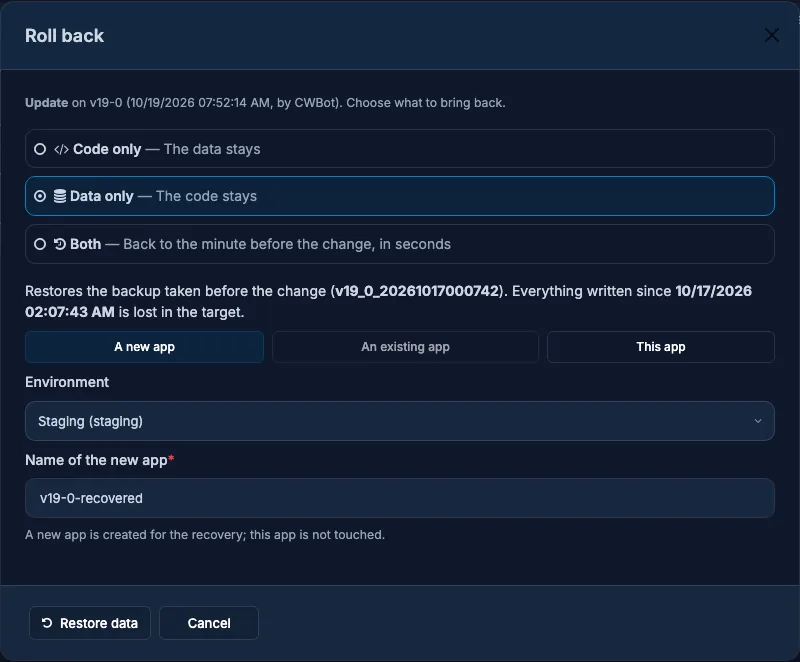
The backup taken before the change is restored under the current code, and the modules migrated since are updated so the data matches it. Choose where the data goes:
| Target | What happens |
|---|---|
| A new app | A new app is created from the backup in a non-production environment of the project; this app is not touched. Use it to look at old records and copy back what you need. |
| An existing app | A deployed non-production app of the project on the same Odoo version gets the data. Its database is replaced, then all of its modules are updated so the data matches its own code. |
| This app | This app's data is replaced. A safety backup of its current data is taken first. |
A copy into another app is neutralized: it sends no emails and runs no scheduled jobs. While data is restored into an app, its maintenance page is up.
Both
The code and the data go back to the minute before the change; everything written since is lost.
- When the update's database is still kept on the server (Instant undo), it is put back in seconds. The current data is set aside on the server for a day.
- Otherwise the backup taken before the change is restored. A safety backup of the current data is taken first.
Who may roll back
| Choice | Development | Staging | Production | Plan |
|---|---|---|---|---|
| Code only | Developer | Developer Plus | Maintainer | Automated deployments |
| Data only | Developer | Developer Plus | Maintainer | Backup automation |
| Both | Developer | Developer Plus | Maintainer | Both features |
Essential, Pro and Premium include both features. A choice your role cannot run on this environment shows a lock.
Safe updates
A module update is the riskiest part of a change: it migrates the database. With safe updates, the module update runs on a copy of the database. The app is switched to the copy only after the update and a start on it have both worked. If either fails, the copy is thrown away: the app keeps its code and its data and serves again within a minute. Nothing has to be restored, because nothing changed.
It applies to changes to data that already exists: a Deploy of an app deployed before, Update, Quick update with its module update, and Update Modules. A first deploy, or a deploy on a clean database, has nothing to protect. The Build and Update Modules dialogs say when the update will run on a copy.
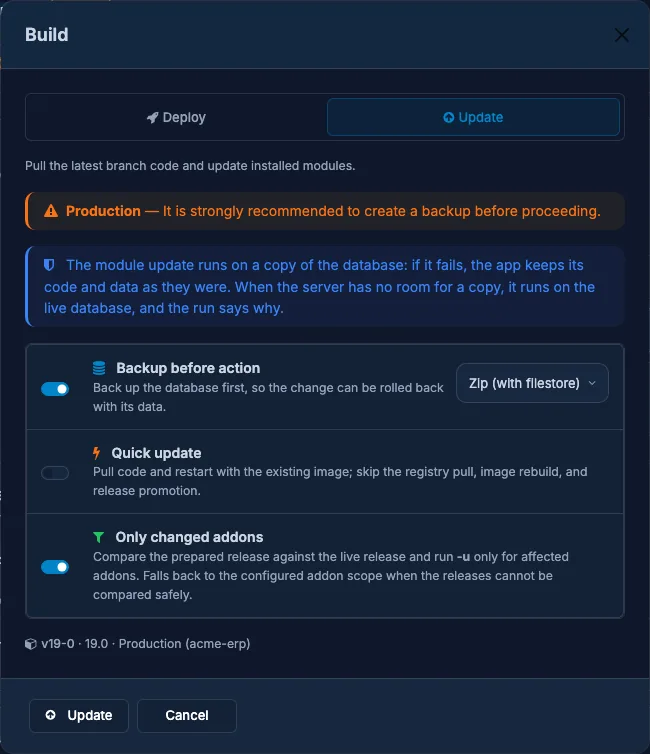
A copy needs room: the database server must have about 1.2 times the database's size, plus 2 GB, free. It also needs the database on the environment's own database server, and no backup of the app running at the time. When a copy cannot be made, the run says why, for example that the server lacks space, and what it did instead.
The update copy policy
Each environment says what to do when an update cannot run on a copy. Open the project, pick the environment, switch to Settings and open Automation.

| Policy | What it does |
|---|---|
| In place | The update runs on the live database, as a plain update. The default outside production. |
| On a copy, else in place | On a copy whenever one can be made; on the live database otherwise, and the run says why. |
| On a copy, or not at all | On a copy, or the update is refused, so the app keeps serving untouched. |
Production always updates on a copy when it can (On a copy, else in place), so the setting only shows in staging and development.
The kept copy
After a safe update worked, the database from before it is not dropped right away. It stays on the server until the next safe update of the app or for 7 days, whichever comes first. While it is there, the update's restore point shows Instant undo, and rolling back Both puts it back in seconds instead of restoring a backup.
The backup taken before the change stays too: the kept copy is on the same server as the app, and the backup covers every older point.
When an update fails
- Open the app's Operations and open the failed run: the step that failed says why. A run that shows Retrying is not finished; the platform tries the step again on its own.
- If the update ran on a copy, its restore point says Failed, nothing changed: the app still runs its old code on its old data. Fix the cause, for example in your code, push, and update again.
- If the update ran on the live database and the app does not work, roll it back with Both from the point before the update.
- If the failure was temporary, a network problem for example, use Retry in the app's header: it runs the failed run again from the step that failed.
Was this page helpful?
Your answer helps us prioritize documentation improvements.
Thanks — your feedback helps us improve.
Type to search titles and text.
↑↓ to move ↵ to open Esc to close