Backups & restore
Automated backup scheduling, restore flows, cross-server support, and remote storage uploads.
Backups & Restorations
CloudWady provides comprehensive backup and restoration capabilities including automated scheduling, cross-server support, and remote storage uploads.
Backup History
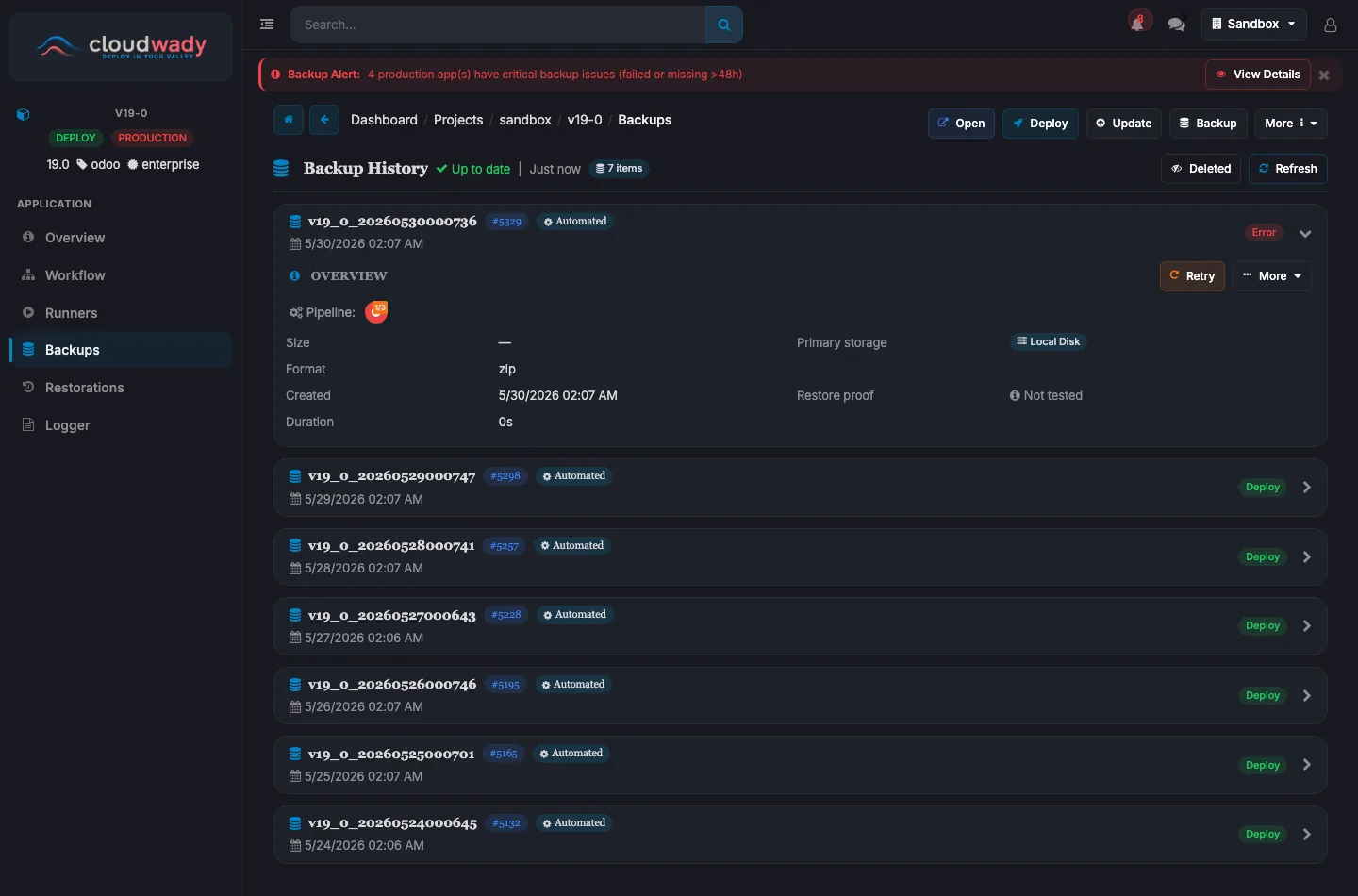
The Backups screen lists all backups for the application with:
- Backup ID: Unique identifier with sequence number.
- State badge: AUTOMATED (scheduled) or MANUAL (on-demand).
- Timestamp: When the backup was created.
- Status: Color-coded success, processing, or failed.
- Storage info: Storage box name, type (SFTP/Storage Box), upload status.
- Runners: Number of related deployment operations.
Backup Actions
Actions are state-dependent — different buttons appear based on the backup's current workflow state:
| Action | Description | Condition | Access Level |
|---|---|---|---|
| Start | Begin backup execution | the backup is in draft state | Developer+ |
| Retry | Retry failed backup | the backup failed or was canceled | Developer+ |
| Cancel | Cancel running/pending backup | the backup is running or not yet started | Developer+ |
| Download | Download backup file | Download link is available | Developer+ |
| Generate Link | Create a time-limited download link | No download link exists yet | Developer+ |
| Restore | Initiate restoration from this backup | Backup is completed | Developer+ |
| Delete | Remove the backup record | Not currently running | Admin |
| Deleted toggle | Show or hide deleted backups | Always | All |
Storage Upload Actions
Each backup can have storage uploads (expandable). Per-upload actions:
| Action | Description |
|---|---|
| Info | View storage upload details (type, status, progress) |
| Download from Storage | Download backup from remote storage |
| Upload / Retry Upload | Upload backup to storage or retry failed upload |
| Delete from Storage | Remove backup from remote storage |
Restorations
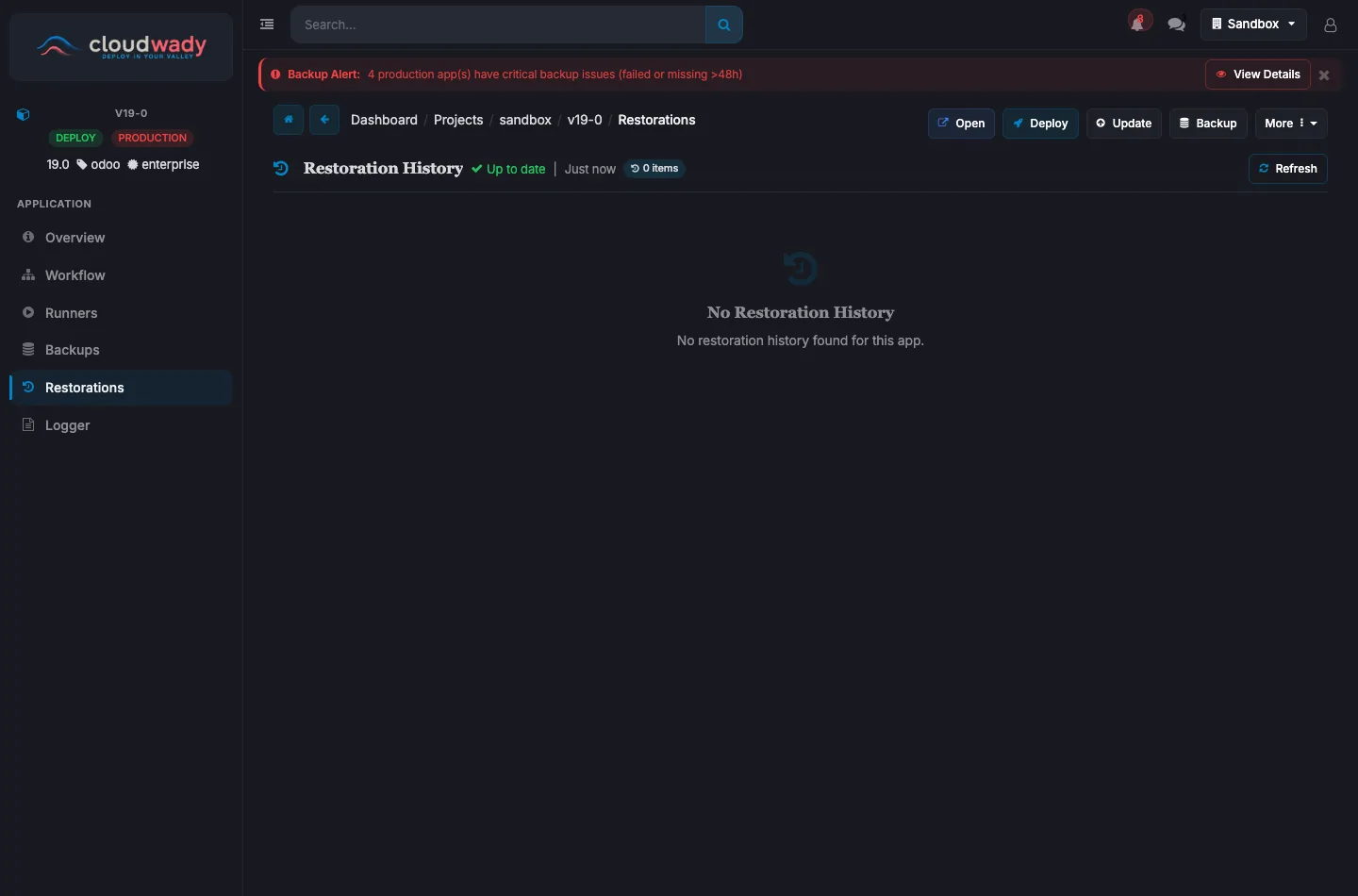
The Restorations screen shows two sections: Target Restorations (restored FROM other apps to this app) and Source Restorations (restored TO other apps from this app). Each restoration displays:
- Source app and server with navigation link.
- Target app and server with navigation link.
- Configuration badges: Reset Admin (Yes/No), Neutralize DB (Yes/No), Cross Server (Yes/No).
Restoration Actions
Actions are state-dependent:
| Action | Description | Condition | Access Level |
|---|---|---|---|
| Start | Begin restoration | State not in done/error/running | Developer+ |
| Retry | Retry failed restoration | State is error/canceled | Developer+ |
| Cancel | Cancel running/pending restoration | State is running/draft | Developer+ |
| Open App | Navigate to the restored application | Target app URL exists | Viewer+ |
Was this page helpful?
Your answer helps us prioritize documentation improvements.
Thanks — your feedback helps us improve.