Documentation Deploy & operate
Servers & SSH access
Your server's screen, its actions, the users on the machine, personal SSH keys, and who may open a terminal.
The server screen
Open Infrastructure → Servers and click a server. Its sidebar has Overview, Installers (see Installers), Monitoring and Operations, the runs on the server.
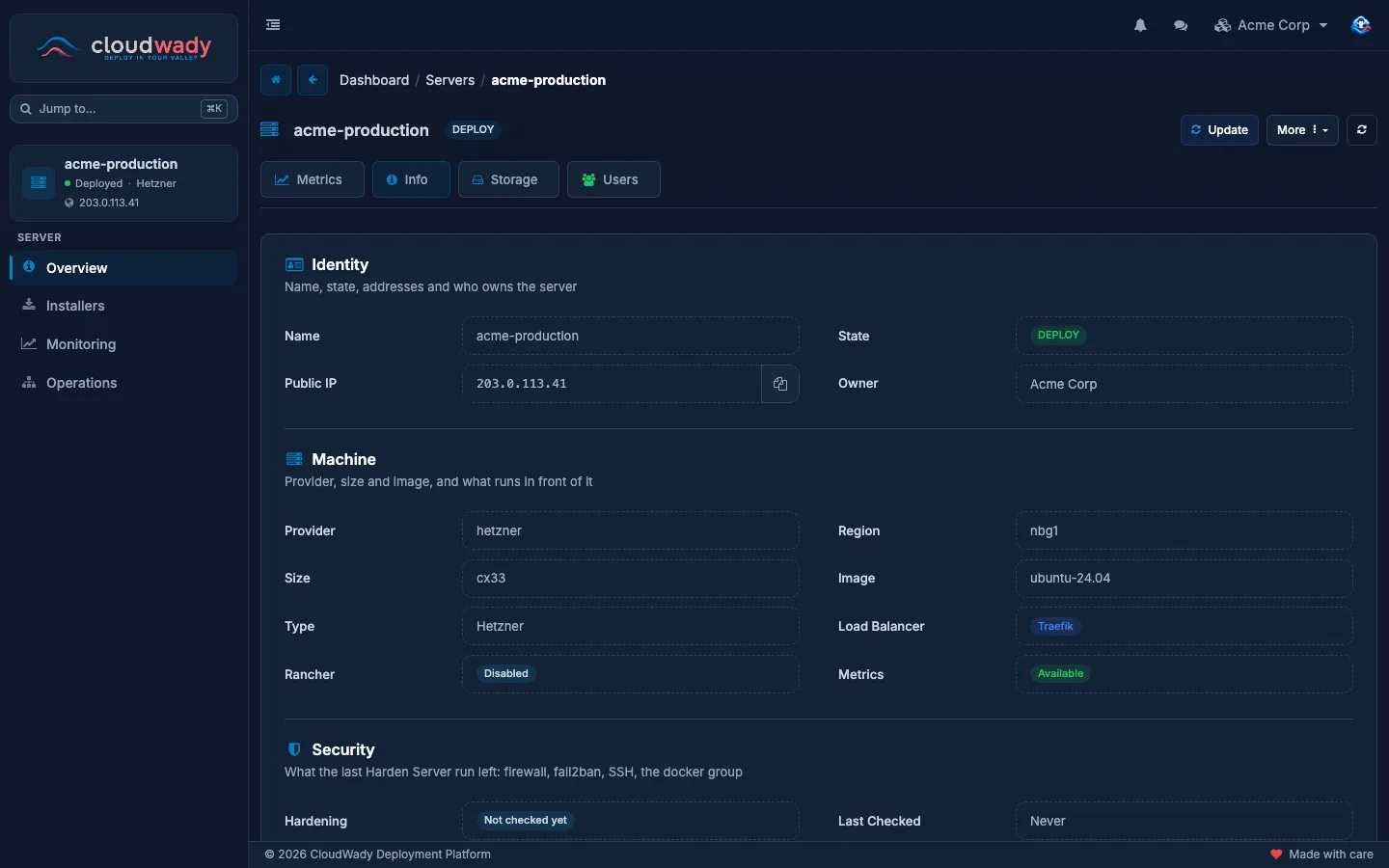
The Overview has four tabs:
| Tab | What it shows |
|---|---|
| Metrics | CPU, memory, disk and load over the last hour up to the last 30 days, once the server reports metrics. |
| Info | Identity (name, state, public and private addresses, owner), Machine (provider, size, image, region, load balancer) and Security: what the last Harden Server run left in place. |
| Storage | Volumes mounted on the server. |
| Users | The accounts on the machine, their SSH keys and terminal access (see Server users). |
Server actions
Update, in the header, applies the server's configuration again. More holds the rest:
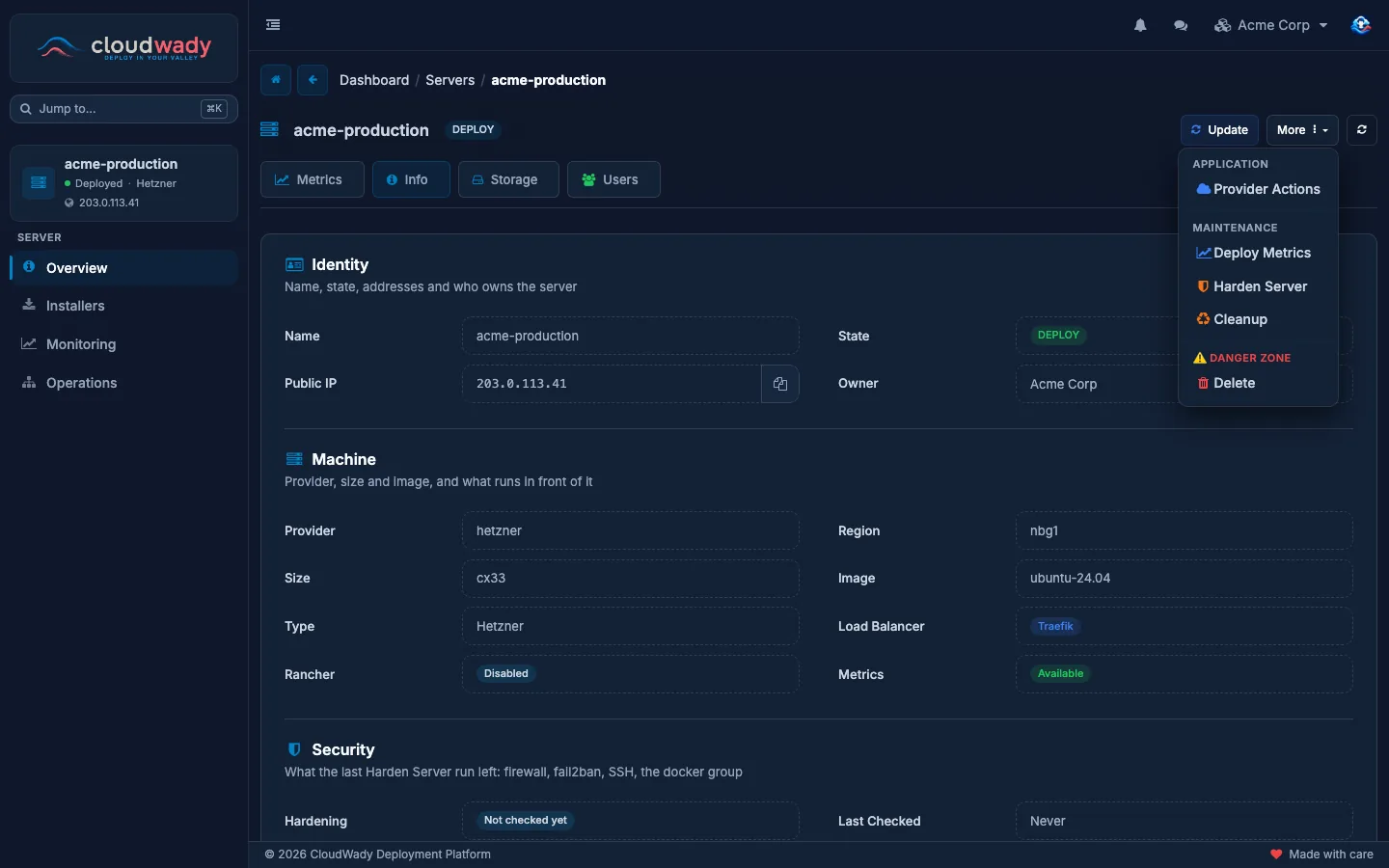
| Action | What it does |
|---|---|
| Provider Actions | Reads the machine's current specs from your cloud provider, or resizes it to another size (on Hetzner, optionally with a bigger disk). |
| Deploy Metrics | Installs what the Metrics tab and the monitoring boards read. |
| Harden Server | Sets up the firewall, fail2ban (which bans addresses that keep failing to log in over SSH) and the SSH settings, takes app users out of the docker group, and makes the apps' configuration files private. |
| Cleanup | Clears out temporary files and unused resources on the server. |
| Delete | Deletes the server and everything on it. |
Run Harden Server once a server is up, then again after you change its users. The Info tab's Security section shows the result.
Server users
The Overview's Users tab lists the accounts on the machine: the ones CloudWady made (such as odoo, which runs your Odoo containers) and the ones you add.
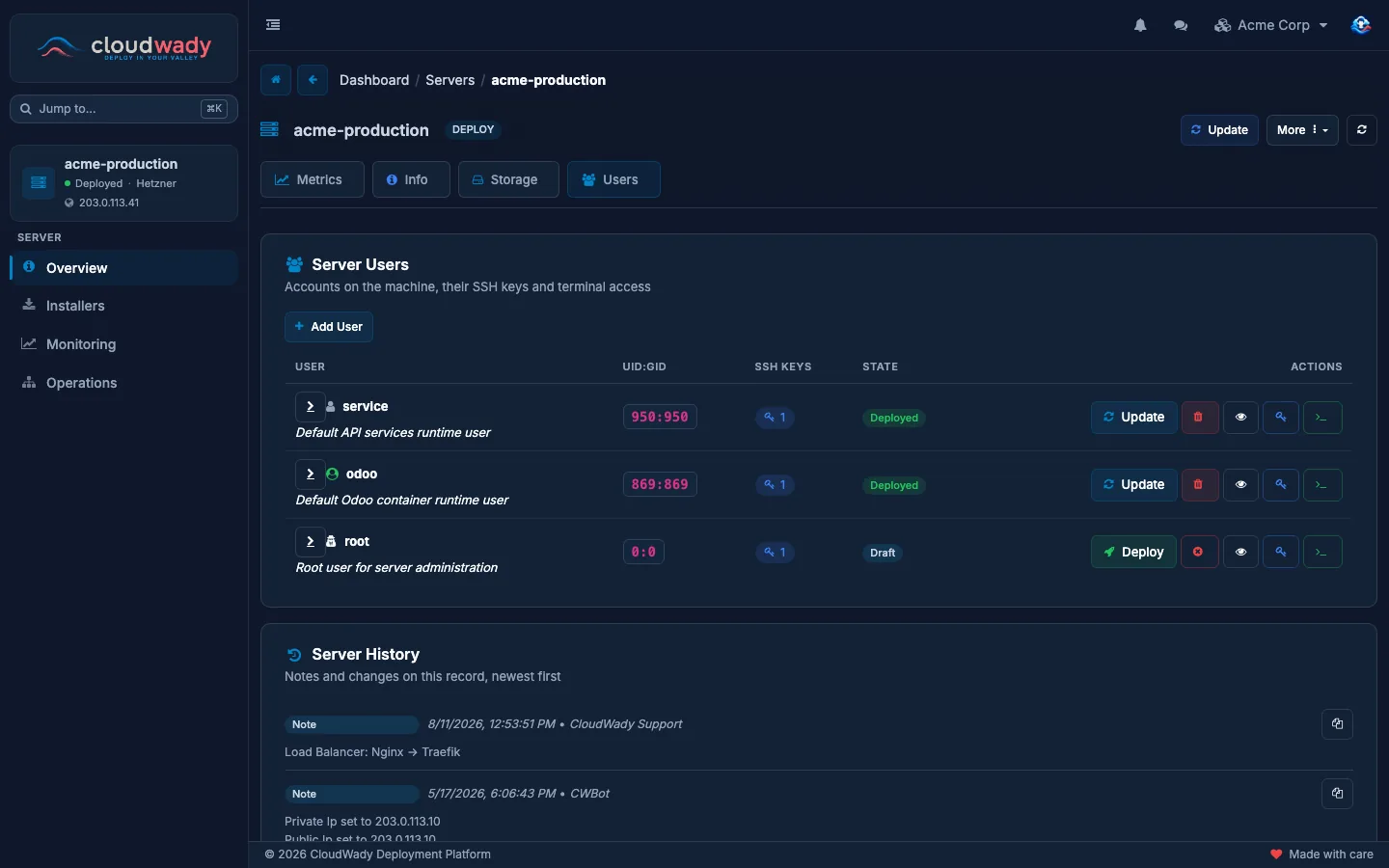
Add User asks for a username and, optionally, a description, UID and GID, home directory, shell, extra groups and a generated SSH key. Then Deploy creates the user on the server. Each row also has Update, delete from the server, details, SSH keys and Open Terminal.
sudo, docker, adm, wheel, lxd, disk, shadow, root, admin) or a UID or GID below 1000. Those stay with CloudWady staff.SSH keys
Your personal keys
Add your public key once, under My Settings → SSH Keys: press Add Key, give it a name, and paste the key or upload its .pub file. The page shows how to find or make one:
cat ~/.ssh/id_ed25519.pub
ssh-keygen -t ed25519 -C "alex@acme.example"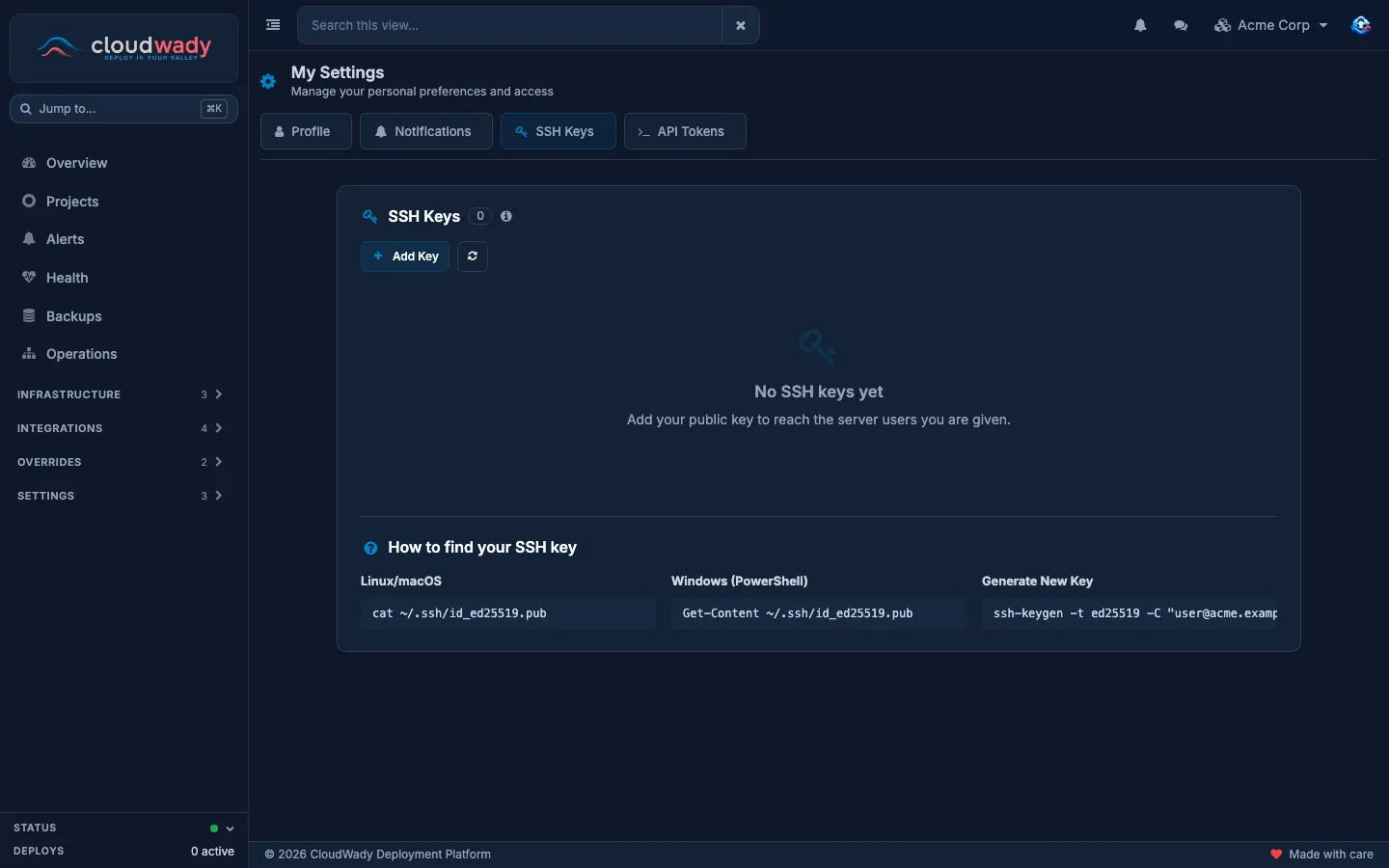
Give a server user a key
- On the server's Users tab, open the user's SSH keys.
- Press Add SSH Key and pick the key source: Use my personal key (one from My Settings) or Generate new key.
- Press Add Key (or Generate Key), then Deploy SSH key to put it on the server.
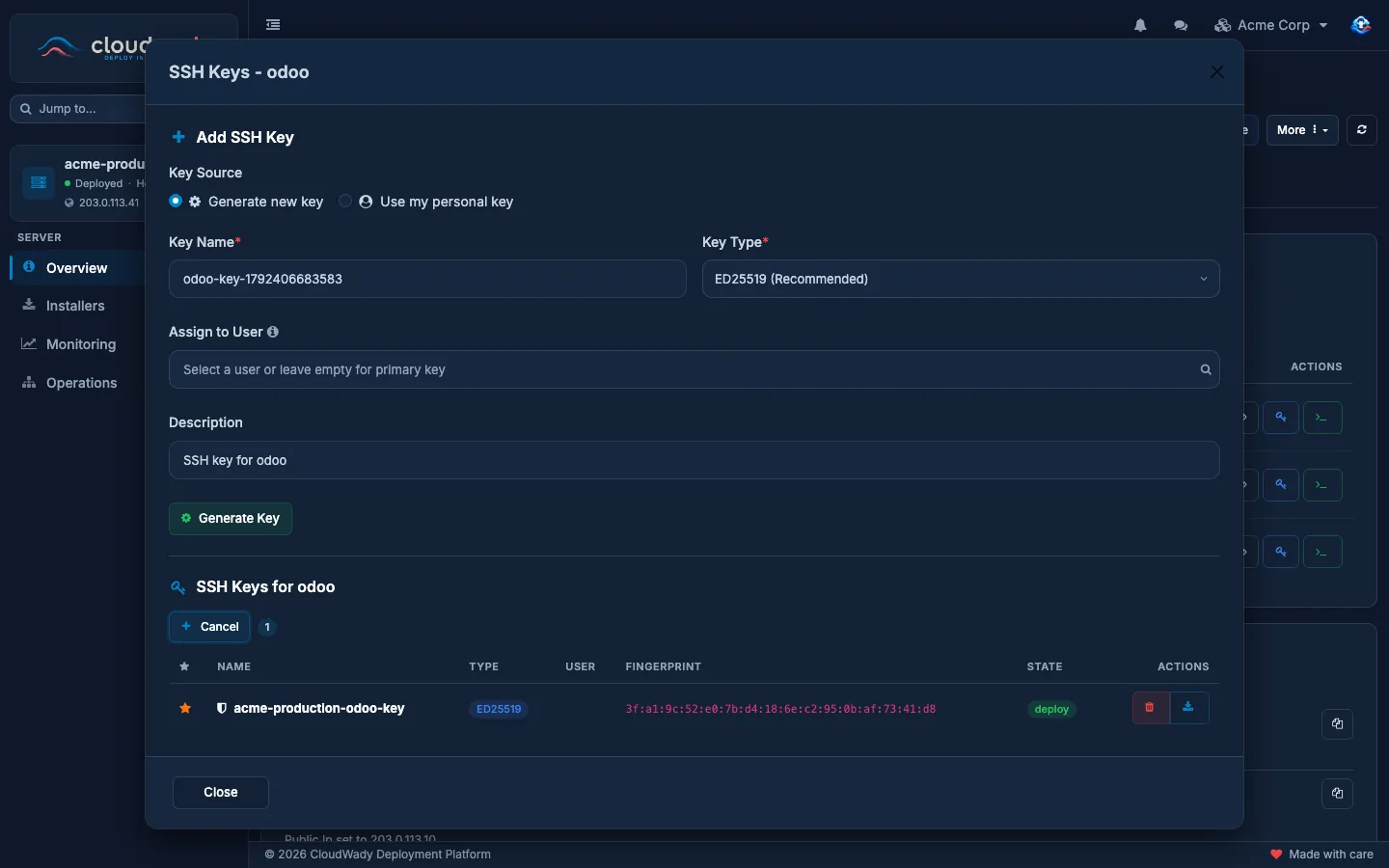
The same list lets you mark a key as primary, download its public half, or delete it from the server.
Opening a terminal
Press Open Terminal on a server user's row to get a shell on the server as that user, in your browser. It needs one of your keys on that user. When you have several, CloudWady asks which one to use.
Who may open a terminal follows the most sensitive environment the server hosts:
| Server | Who may open a terminal |
|---|---|
| Hosts a production environment | Maintainer and Admin |
| Staging or development only | Developer Plus, Maintainer and Admin |
Who can do what
| Action | Development or staging server | Production server |
|---|---|---|
| See the server | Viewer | Viewer |
| Update, read the provider's specs | Developer Plus | Maintainer |
| Harden Server, Deploy Metrics, Cleanup, resize | Maintainer | Maintainer |
| Add and manage server users | Developer Plus | Maintainer |
| Open a terminal | Developer Plus | Maintainer |
| Delete the server | Maintainer | Admin |
See Permissions & access for the levels.
Was this page helpful?
Your answer helps us prioritize documentation improvements.
Thanks — your feedback helps us improve.
Type to search titles and text.
↑↓ to move ↵ to open Esc to close